


The introduction of Gutenberg in WordPress has revolutionized the way we create and design content. With Gutenberg’s popularity on the rise, content creators are on the hunt for ways to make their content easier and more effective to write. As more and more blocks are added to the repository, it becomes increasingly important to allow a sort of interoperability to them – allowing blocks to transfer content from one to another as users figure out which blocks work best for them. Thankfully, the Block Transform API allows exactly that.
What is the Block Transform API?
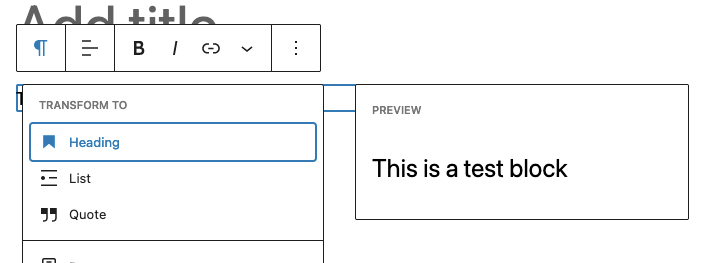
A Block Transform is underlying code in a Gutenberg block that allows that block to be converted to another. This happens in one of two ways:
- Outgoing, moving data to another block
- Incoming, moving data from other blocks or other formats into a Gutenberg Block
It’s good practice to ensure that any blocks created have at least the basic transformations accounted for – your content editors will thank you for the ability to seamlessly move between blocks as they try to figure out the best ways to structure their content.
How to Transform A Block In The WordPress Editor
In the WordPress Editor, taking advantage of a block transform is easy:
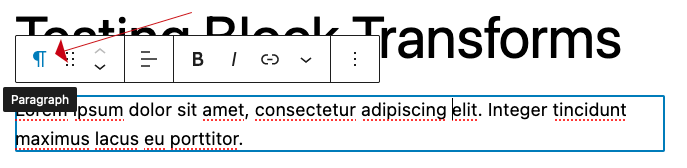
Click on the block you wish to transform. A contextual menu will pop up over the block. Click on the block time – in the example above, it’s a Paragraph tag.
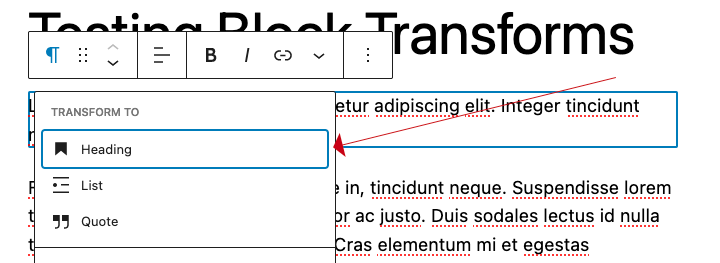
This will bring up the “Transform To…” dropdown. Here, you’ll see the list of defined blocks that you can transfer this block’s content to. In this case, we want to change this block to a Headline block.
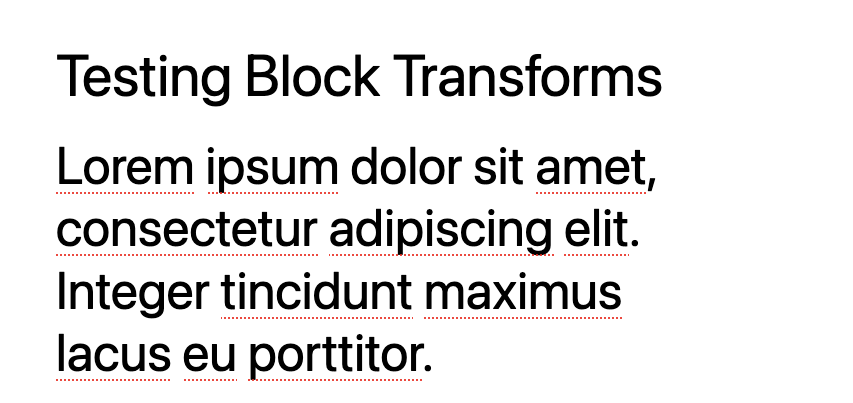
The content is immediately transformed into a headline block. We can transform it back to a paragraph block, or we can use it as a headline with the previous text imported and ready to manipulate.
Setting Up A Block Transform
Most of the core WordPress blocks have transforms defined already, but what if we’re writing our own blocks a part of a theme or plugin? Let’s look at a very simple custom WordPress block:
export const settings = {
    title: 'My Block Title',
    description: 'My block description',
    /* ... */
    transforms: {
        from: [
            /* supported from transforms */
        ],
        to: [
            /* supported to transforms */
        ],
    },
};
Here we have a defined block with its title and description, and not much else. If we want to add a transform to this, we need to define a few parameters, as described in the Block Transform handbook on WordPress.org.
First, we need to define which type of transformation it is:
- block – conversion of one block to another
- enter – conversion of specific content entered by the user (example: a separator block created when the user types “—“. Markdown conversion is a great example of this (## turns into a Headline 2 when you add it to the editor)
- files – recognition of a specific file time, and a conversion of that file into a block
- prefix – conversion of a specific command prefix (ex. !block) to a block.
- raw – conversion of raw HTML to a pre-formatted block design.
- shortcode – conversion of a shortcode and its attributes into an appropriate Gutenberg block
For this guide, we’ll stay simple and go with a block to block conversion. Let’s look at our example above: transforming a paragraph tag into a headline tag (this is defined in the Headline block, since it’s a ‘from’ transform):
import { createBlock } from '@wordpress/blocks';

transforms: {
    from: [
        {
            type: 'block',
            blocks: [ 'core/paragraph' ],
            transform: ( attributes ) => {
                return createBlock( 'core/heading', {
                    content: attributes.content,
                } );
            },
        },
    ]
}
We are defining our ‘from’ transform, telling WordPress that we are defining the transform from paragraph to heading, and using createBlock to have WordPress set up and create the new Headline block with our current content.
A ‘to’ transition is similar, defining what content we can push to other blocks during the conversion:
import { createBlock } from '@wordpress/blocks';

transforms: {
    to: [
        {
            type: 'block',
            blocks: [ 'core/heading' ],
            transform: ( attributes ) => {
                return createBlock( 'core/paragraph', {
                    content: attributes.content,
                } );
            },
        },
    ]
}
Why Bother With A Block Transform?
WordPress is a system that’s been well known for its ease-of-use for non-technical users. Without a clear standard to migrate content between blocks, any new blocks created will only created walled gardens that frustrate and confuse users. The Block Transform API is one of the most powerful things to come out of Gutenberg. It also is one of the most underutilized features.
As developers, we owe it to our users to allow content to flow freely between blocks. Selfishly, it allows users to adopt our blocks easier, knowing they can convert a block instead of having to create a block from scratch (or copy and paste content from one block to another). But it also allows users the flexibility to move away from our blocks as a courtesy.
Block transforms are a powerful tool that can help you save time and streamline your content creation process in WordPress. By enabling a user to easily convert one type of block into another, block transforms give all users more flexibility and control over the design and layout of content.
Whether you’re a seasoned developer or a beginner, Gutenberg’s block transforms feature makes it easier than ever to create engaging and visually appealing websites, and it’s worth keeping as a tool in your plugin creation toolkit.